LaTeX: Overleaf – teamwork and article submission
Multi‑author work in Overleaf, project synchronization (Dropbox, GitHub) and preparing article submission for a journal.
Overleaf (Online LaTeX Editor) is a LaTeX environment operating in the SaaS model (Software as a Service).
It runs in a browser, and document compilation is performed on the server side. This provides a compiler and package environment independent of the user’s computer, which in multi‑author work eliminates problems like “it does not compile on my machine”. In contrast to a local workflow, no tool configuration is required – the environment is ready to use.
I wrote the book Metody analityczne w obliczeniach procesów łączeniowych w systemie elektroenergetycznym in TeXstudio – including typesetting and graphical layout. In a previous post I described the configuration of a local LaTeX environment in VS Code.
Overleaf is simple enough that in practice it is sufficient to know that such a system exists and to recognize a few of its functions. After logging in, it is enough to look around the interface.
The main advantage of Overleaf is teamwork – in my case mainly when preparing articles.
In this post I show the basic functions of Overleaf and how to prepare an article submission to a journal.
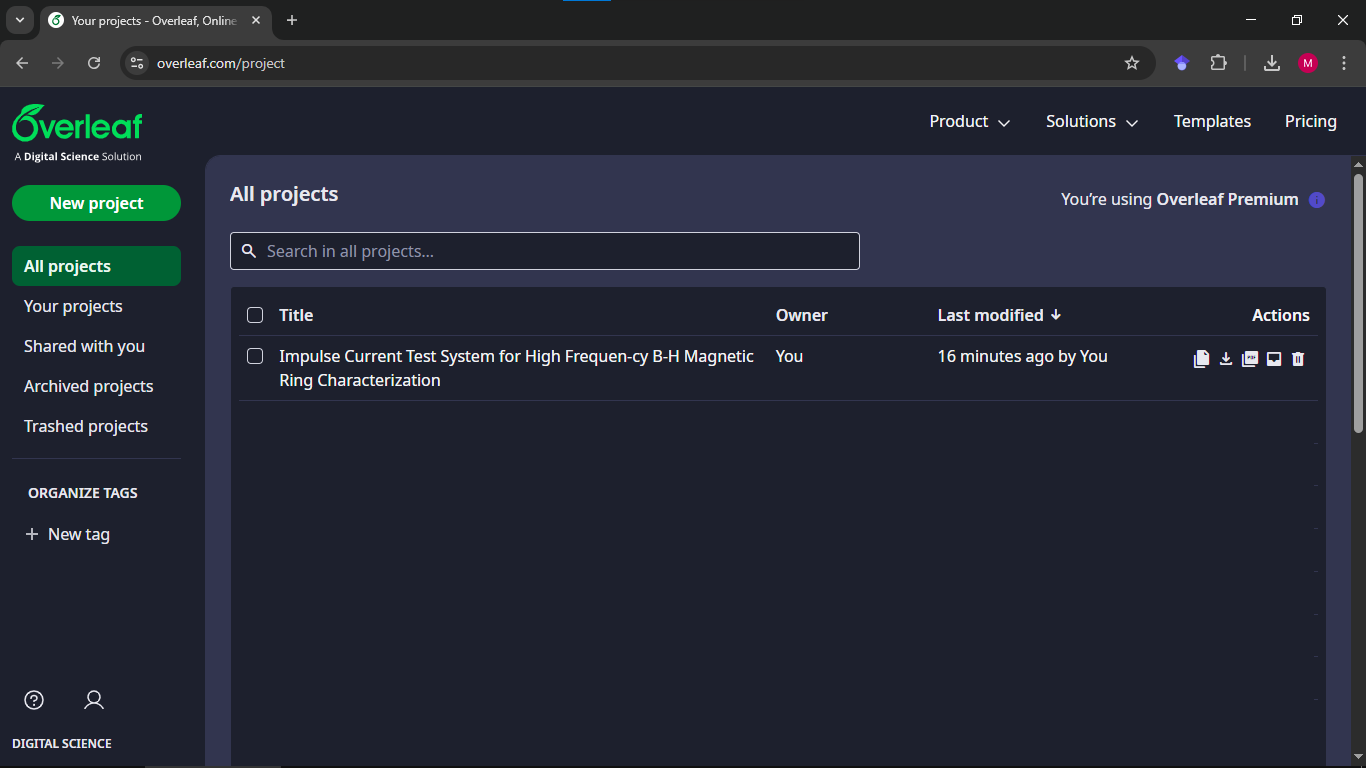 Fig. 1. Overleaf main dashboard – list of user projects.
Access to Overleaf
Overleaf is a paid service. Many universities provide institutional access. Access to Overleaf can also be obtained, for example, through IEEE membership. Another way to access Overleaf is by joining a project where other participants already have a paid license.
For comparison, local editors VS Code and TeXstudio are open‑source projects.
Working with a project
Interface
The interface is intuitive:
- on the left – project file tree,
- in the center – LaTeX source code,
- on the right – PDF preview.
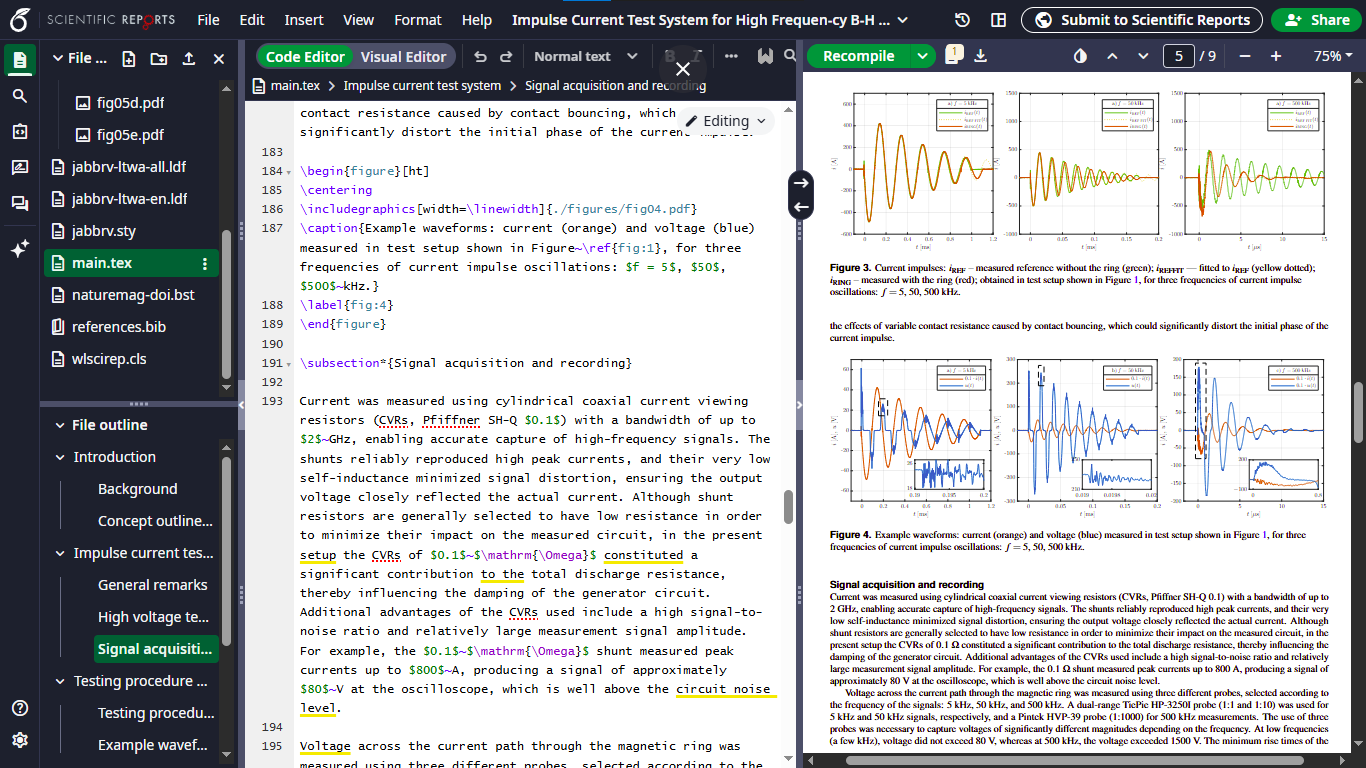 Fig. 2. Overleaf editor – LaTeX source code and preview of the compiled PDF document.
New project
A new project can be created from the “New project” panel:
- create a document using a template provided by a publisher,
- upload or paste your own project,
- start from a minimal document.
Example minimal document:
1
2
3
4
\documentclass{article}
\begin{document}
Hello World
\end{document}
Templates can be found here: https://www.overleaf.com/latex/templates
Sharing a project
A project can be shared with collaborators using the “Share” option, defining the access level:
- Can edit – full editing access,
- Can view – read‑only access.
Overleaf also allows tracking the history of changes and commenting or marking fragments of the text.
Key functions
It is useful to recognize how the main functions work:
- compilation runs automatically after changes in the document (it can also be forced with Ctrl+S),
- the Recompile button is also available, with a useful “From scratch” option,
- compilation logs and error messages are available,
- bidirectional synchronization (SyncTeX) between code and PDF is supported.
Integration with external services
Integration with external services is also available – it can be configured in account settings (Account → Account settings → Project synchronisation).
For example, a project can be synchronized with Dropbox. In that case the project is saved locally in the Dropbox Apps/Overleaf directory, which can be shared with other project participants.
This allows keeping a local copy of the project alongside the cloud version.
Projects can also be synchronized with GitHub and other services.
Article submission
Overleaf allows preparing a submission package directly from the project – the Submit to option.
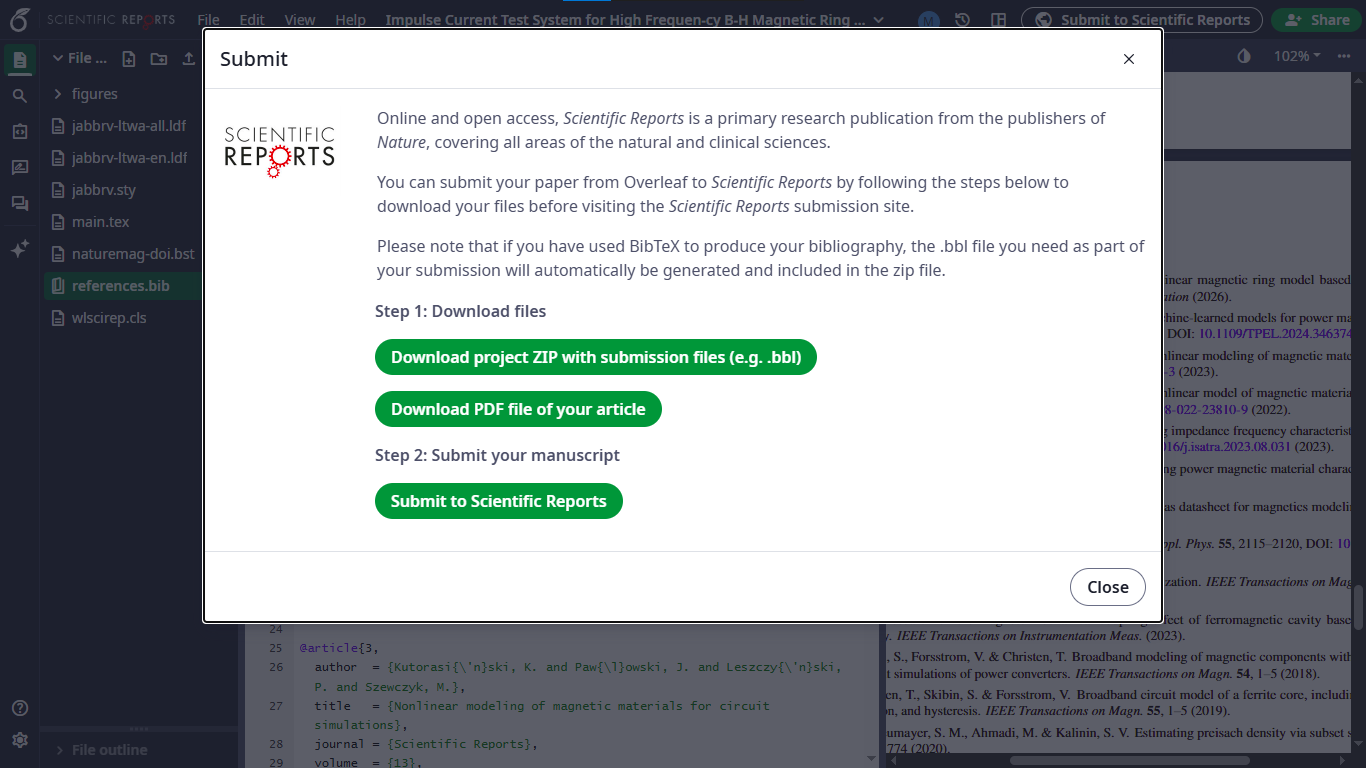 Fig. 3. Window for preparing submission of an article to the Scientific Reports journal.
Available options include:
- Download project ZIP with submission files (including the
.bblfile), - Download PDF file of your article,
- integration with selected journals (e.g. Scientific Reports).
The ZIP package contains all files required by the journal submission system.
Summary
Overleaf works well for preparing articles based on templates provided by publishers.
It is especially useful for teamwork, including collaboration with people who are not advanced LaTeX users.
Personally, for writing a book I would choose VS Code or TeXstudio, while for articles Overleaf is very convenient.