Environment: Linux under Windows – MSYS2, MinGW, and gcc
A minimal Linux-like environment on Windows using MSYS2 and MinGW64: installing gcc, the GMP library and ImageMagick, with a sample C compilation workflow.
The first thing worth doing on Windows is installing Linux tools inside it. Below I describe a minimal setup based on MSYS2.
MSYS2 provides a Unix-like environment and toolset for Windows. The name comes from “Minimal SYStem”, generation 2.
MSYS2 is built on MinGW - a GNU toolchain for Windows. MinGW stands for “Minimalist GNU for Windows”.
GNU is the project that provides free system tools used in Linux systems, including the gcc compiler for C.
I use MSYS2 as a source of basic Linux tools on Windows. The main goal is to have a Linux terminal with the bash shell and the gcc compiler, along with utilities such as nano and tools like ImageMagick.
This gives me a mini-Linux inside Windows: MSYS2 as the environment, MinGW as the toolchain, and gcc as the compiler. For installing packages in MSYS2, I use the pacman package manager.
Installing and Configuring MSYS2
Download it from:
After installation, three shortcuts appear (Fig. 1).
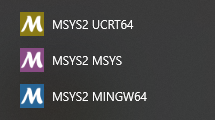 Fig. 1. Result of MSYS2 installation: MSYS, MINGW64, UCRT64.
MSYS is mainly used for package management. MINGW64 and UCRT64 allow building native .exe files for Windows. I use MINGW64 - it is simpler than UCRT64 and sufficient for my purposes.
Installing the gcc Compiler
Launch MSYS2 MINGW64 and install the compiler:
1
pacman -S --needed mingw-w64-x86_64-gcc
Verify the installation:
1
gcc --version
For playing with large numbers, I also need the GMP library. Install it in MSYS2 MINGW64:
1
pacman -S --needed mingw-w64-x86_64-gmp
GMP (GNU Multiple Precision Arithmetic Library) is a C library for arbitrary-precision arithmetic, exceeding the limits of standard C numeric types.
Testing. Create a directory c:/code. In the MINGW64 terminal, navigate to it, create hello.c, compile, and run:
1
2
cd /c/code
nano hello.c
1
2
3
4
5
6
7
#include <stdio.h>

int main(void)
{
    printf("Hello, world!\n");
    return 0;
}
1
2
gcc hello.c -o hello
./hello
File: hello.c.
Installing ImageMagick
Install ImageMagick in the MSYS2 MINGW64 environment.
Update packages (if not done recently):
1
pacman -Syu
Install the package:
1
pacman -S mingw-w64-x86_64-imagemagick
Verify the installation:
1
magick -version
Example usage:
1
magick input.png -gravity center -crop 1:1 -resize 512x512 output.png
Example: Creating a Screenshot for README.md:
1) Open the page in Chrome::
- F12 → DevTools
Ctrl+Shift+P(Command Menu)- Type:
screenshot - Select: Capture full size screenshot
Chrome generates a PNG file containing the full page height.
2) Use magick to add border and shadow,
1
magick screenshot-raw.png   -resize 500x   -bordercolor white -border 10   -alpha set   \( +clone -background black -shadow 40x3+0+2 \)   +swap -background none -compose over -composite   -strip -quality 92   screenshot.png
Summary
Minimal Unix-like environment for working under Windows:
- MSYS2 (bash shell + pacman package manager)
- MinGW64 toolchain
- gcc compiler
- nano editor
- GMP library
- ImageMagick
For a start, this is sufficient.